Genuine Curiosity

Author Dwayne Melancon is always on the lookout for new things to learn. An ecclectic collection of postings on personal productivity, travel, good books, gadgets, leadership & management, and many other things.


Fresh Gear: Get all Jaxed up

I recently discovered a free app called NetJaxer that provides an easy "home base" for all your Web 2.0 / Ajax apps. I've been slowly (but surely) taking on more web-based apps for collaboration, productivity, and fun, and NetJaxer makes it easy for me to use them.

One launchpad

NetJaxer provides one place to go and organizes my web-based apps into a launchpad kind of view (see my screen shot - click to zoom). Within this view, it can store thumbnail views of your web-based apps to make it easier to find what you're looking for.

NetJaxer also provides an icon in the system tray to make it easier to launch my apps. This feature, in particular, is making my web-based document sharing a bit easier to manage (I'm doing quite a bit with Google Documents these days).

Suggestions and ratings

Another thing that is very cool about NetJaxer is that it provides a dynamic kind of "directory" of Ajax apps, complete with categorization and user ratings. I've found some very cool new tools this way. Check it out!

Read More

Fresh Gear: A less bloated, more stable PDF reader

I read lots of PDF files, but I've been annoyed lately by some glitches with Adobe's Acrobat Reader software. Among the reasons the Acrobat Reader annoys me:

  • It's huge by any measure. It's a large download, it takes lots of memory, and has a large disk footprint.
  • It's not very stable. When I open PDF's from within my browser (any flavor of browser), Acrobat reader often misbehaves. Sometimes, it causes my CPU utilization to spike to 100% (with the AcroRead.exe process taking 99% of that). Sometimes, it grabs a hunk of memory and won't let it go. In either case, I have to forcibly terminate the process with Windows to recover.
  • It "phones home" all the time. Adobe installs an update checker that constantly bugs me to update the software (and no, these problems don't seem to get any better even after the updates). Along with that, it recommends a bunch of other products that it thinks I might want to download.

A few weeks ago, I went looking for a better alternative, and I think I've found it. The alternative is called "Foxit Reader v2" and I've been running it for about 3 weeks with none of the problems I used to have with Acrobat Reader. It's free, and there are versions for Windows, Linux, and Windows Mobile use.

If you're a Windows user and you've seen some of the clunky annoyances I describe above, check out the Foxit Reader.

  • It's a smaller download (1.65 MB for Windows).
  • It takes up less room on your hard drive.
  • It's very stable.
  • It checks for updates when you tell it to (via a menu command).
  • It has all the functionality you need to read, print, fill out forms, etc. with PDF files.
  • And, again, it's free.

How can they offer this free? Foxit apparently has some additional utilities they sell, such as those for creating, editing, and otherwise manipulating PDF's - they use those utilities to pay the bills.


Related items

Read More

Tuesday Tidbits - Useful Stuff for Professionals

A while back, I shared information on how to find a good plane seat. Now, I'd like to tell you about a way to do this on a smartphone, pda or other small screen device with internet connectivity. Just point your mobile browser to http://mobile.seatguru.com and select the airline and aircraft from the menu.

From there, you'll see some information about the aircraft configuration along with a color-coded seat map that will help you determine whether your seat is good, bad, or other. This is also helpful if you want to ask for specific seats either on the phone or while talking with the gate agent.

You can see an example of the seat chart in the picture at left (click the image if you want to see a bit larger view).

I love SeatGuru - and it's free, by the way.

Note: Some of you who've dropped by here for a while may notice that I'm no longer using a Treo; yep, my company switched to Blackberry in December.


Related items:

Read More

Fresh Gear: Faster filing - email style

I've been running the new version of Claritude Software's SpeedFiler, which is an Outlook add-in designed to streamline the way you file messages in Outlook.

If you ever use Outlook's [Ctrl]+[Shift]+[V] keystroke combo to move messages to filing folders, you know that it is a good habit to develop, but it requires a lot of steps if you use subfolders (the Outlook UI is a little clunky). I've been using this since I got hooked on David Allen's "Getting Things Done".

Outlook's clunky old filing

If, for example, I want to use the traditional Outlook UI to file a message in a folder called Inbox/Customers/Fictional, I have to:

  • type [Ctrl]+[Shift]+[V] to get the move dialog,
  • type "IN" to get to the Inbox folder,
  • hit the [Right] arrow to expand the subfolders under the Inbox,
  • type "Cust" to get to the Customers Folder,
  • hit the [Right] arrow to expand the subfolders under Customers,
  • type "Fict" to get the the Fictional folder,
  • hit [Enter] to save the message to that folder.
SpeedFiler's better way

SpeedFiler replaces Outlook's dialog for filing. To do the same thing with Speedfiler, I would:

  • type [Ctrl]+[Shift]+[V] to get the move dialog,
  • type "Fict" to get the the Fictional folder,
  • hit [Enter] to save the message to that folder.

Much easier, and a lot less hand movement.

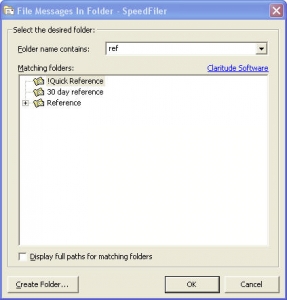
Another cool thing - if you have multiple folders with similar names, SpeedFiler narrows down the list as you type - you can see an example in the screenshot I snagged and posted here, in which I begin to narrow down my various "...reference..." folders.

Other tips and observations:

  • SpeedFiler helps with retrieval
    • One of the drawbacks of filing is that it gives you more folders to navigate through when you want to retrieve things. SpeedFiler helps there - their CEO, Itzy Sabo, turned me on to a very cool shortcut:
      • When you want to navigate to one of your folders, hit <Ctrl>+Y, and the SpeedFiler dialog pops up and you can start typing to narrow down the folder you want to go to. When you've typed enough, hit <Enter> and you're looking at your folder. Beats the heck out of mouse-based navigation.
    • By the way, Itzy's blog has some great productivity articles, as well.
  • SpeedFiler plays well with other children

OK, gadgetboy - what's the big deal?

As David Allen says in his book, filing needs to be easy or it won't get done consistently. SpeedFiler makes it easier to do mundane filing, therefore it is more likely you'll file things consistently.

If you're an Outlook user (using Getting Things Done or not), I recommend you give it a whirl and download the 30-day trial of SpeedFiler

Read More
