Genuine Curiosity

Author Dwayne Melancon is always on the lookout for new things to learn. An ecclectic collection of postings on personal productivity, travel, good books, gadgets, leadership & management, and many other things.


Guten tags

Ariane of Neat & Simple Living tagged me in yet another "5 things" chain. This time, it's about the 5 most useful sites you use to perform your work.

That is a tough one, but here are 5 of my top sites (maybe not "the Top 5" but 5 good ones):

  1. Google  --  OK, so I'm hooked. I use it for Search, for News, Financial research and Alerts.
  2. Amazon.com  --  I am an Amazon Prime customer and, as a heavy reader, they make sure I see the UPS driver a lot.
  3. LinkedIn   --  I am in a business development / networking role, and LinkedIn helps me make new connections by leveraging my existing contacts. Pretty cool for business networking.
  4. SeatGuru   --  I've reviewed SeatGuru in the past - it is the resource to figure out how good your seats are before you fly.
  5. Digg  --  A unique lens on the news of the world. Think of it as News with community-driven editorial overlay or filter. The only categories I watch are Technology and World & Business

Now, I tag 5 more.

If you're tagged, post your five with a Trackback to me, and pass on the favor.

Read More

Voice mails of mystery

I leave and receive lots of voice mail messages. One of my pet peeves: voice mails of mystery. These are cryptic messages in which the caller doesn't give me enough information. You know the type - a name and a phone number, with no other context for why they are calling. Is this a sales call? A friend of a friend trying to connect with me? A wrong number? If I can't tell, I typically delete them.

These types of messages have made me more conscious of the content of the messages I leave for others. I try to follow this general recipe for voice mails I leave:

  1. State who I am and where I am from
  2. State why I am calling
    1. High level - not too much detail, but enough to get their attention
    2. Bonus: a punchy point about what I can do for you, or other "What's in it for you?" points
  3. Provide a bit of context (how I found your name, any time urgency, any drivers you may care about - such as whether this is customer-related, etc.)
  4. Provide information on how to reach me - both by phone and email - for best results, say them clearly and say them twice

I also find it useful to say something like, "If you're not the right contact, I'd really appreciate your help in getting to the right person."

All of this can be completed in 20-30 seconds. If it takes you longer than that, practice condensing you point and key messages until you can do it within 30 seconds consistently.

And smile - it really helps. I also suggest leaving yourself a voice mail as if you were trying to get your own attention and see if you'd call yourself back. Try to be objective when you audit your own message.

Read More

SpeedFiler 2 is a boon to email filing

I recently upgraded to version 2 of Speedfiler from Claritude Software. I've been a loyal v1 user for a long time now, and it's an awesomely easy way to file Outlook emails. If you're a version 1 user, you'll find that version 2 is much faster to load, and it has an eerily accurate ability to predict what folder you want to file messages in, even if they are on a new topic. I'm not sure how it does it, but it is way cool.

A full list of features is available on Claritude's site. Version 1 users can also find out what's new in v2.

Outlook's clunky old filing

If you ever use Outlook's [Ctrl]+[Shift]+[V] keystroke combo to move messages to filing folders, you know that it is a good habit to develop, but it requires a lot of steps if you use subfolders (the Outlook UI is a little clunky). I've been using this since I got hooked on David Allen's "Getting Things Done".

If, for example, I want to use the traditional Outlook UI to file a message in a folder called Inbox/Customers/Fictional, I have to:

    1. type [Ctrl]+[Shift]+[V] to get the move dialog,
    2. type "IN" to get to the Inbox folder,
    3. hit the [Right] arrow to expand the subfolders under the Inbox,
    4. type "Cust" to get to the Customers Folder,
    5. hit the [Right] arrow to expand the subfolders under Customers,
    6. type "Fict" to get the the Fictional folder,
    7. hit [Enter] to save the message to that folder.
SpeedFiler's better way

SpeedFiler replaces Outlook's dialog for filing. To do the same thing with SpeedFiler, I would:

  1. type [Ctrl]+[Shift]+[V] to get the move dialog,
  2. type "Fict" to get the the Fictional folder,
  3. hit [Enter] to save the message to that folder.

Much easier, and a lot less hand movement. By the way, you don't have to start with the first letter of the folder name. For example, if you have a folder called TwilightZone, you can just type "Zone" and it will show up in the list. This is handy when you can't remember the precise folder name but you know one word that is in the folder name.

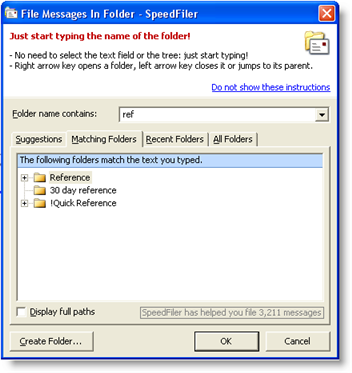
Another cool thing - if you have multiple folders with similar names, SpeedFiler narrows down the list as you type - you can see an example in the screenshot I snagged and posted here, in which I begin to narrow down my various "...reference..." folders.

Other tips and observations:

  • SpeedFiler helps with retrieval
    • One of the drawbacks of filing is that it gives you more folders to navigate through when you want to retrieve things. SpeedFiler helps there - their CEO, Itzy Sabo, turned me on to a very cool shortcut:
  • When you want to navigate to one of your folders, hit [Ctrl]+Y, and the SpeedFiler dialog pops up and you can start typing to narrow down the folder you want to go to. When you've typed enough, hit [Enter] and you're looking at your folder. Beats the heck out of mouse-based navigation. Itzy's blog has some great productivity articles, as well.

So - what's the big deal?

As David Allen says in his book, filing needs to be easy or it won't get done consistently. SpeedFiler makes it easier to do mundane filing, therefore it is more likely you'll file things consistently.

If you're an Outlook user (using Getting Things Done or not), I recommend you give it a whirl and download the 30-day trial of SpeedFiler.

By the way, I use SpeedFiler in conjunction with ClearContext (which I've also written about), and the two work flawlessly together - there are some instances when I use topics with ClearContext, and others when I want to hit [Ctrl]+[Shift]+V to invoke SpeedFiler to do the job.


Other, gadget-related items

Read More

Digby - Blackberry’s best friend?

I've been using a handy new utility called "Digby" that lets me find gift ideas, send gifts to people, and that sort of thing - right from my Blackberry. Digby is a Blackberry-only application that provides a great front-end for a bunch of merchants. As you can see, they use a dog's paw as their logo, so I think you're supposed to think of Digby as a faithful companion that fetches things for you.

You start by browsing for categories (wine, chocolates, gift baskets, romantic gifts, electronics, music, etc.) and then you're presented with selections from their partner merchants.You can get descriptions, pictures (in some cases), and prices for a wide variety of gifts and place the orders in a quick, easy process.

You can see a demo of Digby in action, or get an overview of features at the Digby demo page.

I'm not sure how the service will expand over time, but its current selections seem like they're most useful for people who send gifts professionally - to clients, prospects, and business associates. And, for those occasions when you need to make a deposit in your spouse or special friend's emotional bank account, there are categories in Digby which are fit for that purpose (gift ideas for her, gifts for the man who has everything, gifts for two...).

You can check out the app for free (you don't even have to sign up to browse the categories and merchants) by pointing you Blackberry at http://www.digby.com/download - it's quick and easy to install and give it a spin. Who knows - once you take Digby home, you just may want to keep him.

Read More

My latest site banner

I've had a few inquiries about the picture on my latest site banner. Here's the story - it's from a picture of a curious ground squirrel, which I snapped on a recent campout. It was definitely not shy, and I took the picture as it was trying to get into a bag of trail mix in one of our tents (it later jumped up on the lap of another guy who was there, trying to get to his food). You can see the whole scene here: CuriousChipmunk.jpg (204 KB).

This reminds me of a very funny video that's been making its rounds, called "The Dramatic Chipmunk" - you can watch it below, or on go see it on YouTube. Funny stuff!

This is the best thing since Chocolate Rain and the Chocolate Rain parody (and there are many more...).

Read More